
Anúncios
Discover how to activate and use Alexa directly on your smartphone with the official Amazon app, bringing voice assistance to your fingertips anywhere you go.
Voice assistants have revolutionized the way we interact with technology, and Alexa stands as one of the most popular options worldwide. While many people associate Alexa exclusively with Echo smart speakers, the truth is that you can enjoy all her capabilities right from your smartphone. Whether you’re an Android or iOS user, activating Alexa on your mobile device opens up a world of convenience and smart control.
Anúncios
The Amazon Alexa app transforms your phone into a portable voice assistant, allowing you to set reminders, control smart home devices, play music, check weather updates, and perform countless other tasks. Best of all, the setup process is straightforward and takes just a few minutes. Let’s explore everything you need to know about getting Alexa up and running on your mobile device.
📱 What is the Amazon Alexa App?
The Amazon Alexa app serves as the central hub for managing all things related to Amazon’s voice assistant. Available for both Android and iOS devices, this free application enables users to access Alexa’s features without needing an Echo device. The app provides a comprehensive interface where you can customize settings, add skills, manage smart home devices, and interact with Alexa through voice or text.
Anúncios


Beyond simple voice commands, the Alexa app functions as a control center for your entire smart home ecosystem. You can group devices, create routines, set up multi-room music, and even shop on Amazon using voice commands. The application continuously receives updates that introduce new features and improve existing functionality, ensuring that your experience stays fresh and relevant.
Think of the app as your personal assistant that lives in your pocket. Whether you’re commuting, shopping, or relaxing at home, Alexa remains accessible whenever you need her. The hands-free capability means you can multitask efficiently while staying connected to the information and services you rely on daily.
🚀 How to Download and Install the Alexa App
Getting started with Alexa on your smartphone begins with downloading the official Amazon Alexa app from your device’s app store. The process differs slightly between Android and iOS, but both are incredibly simple and user-friendly.
For Android Users
Android users should head to the Google Play Store and search for “Amazon Alexa.” The official app, developed by Amazon Mobile LLC, typically appears as the first result. Look for the distinctive blue icon with a white speech bubble containing the Alexa ring. Tap the “Install” button and wait for the download to complete. The app size is relatively modest, usually under 200MB, so the download shouldn’t take long on a decent internet connection.
Once installed, you’ll find the Alexa icon on your home screen or app drawer. The app requires Android 8.0 or higher to function optimally, though it may work on slightly older versions with limited features. Make sure your device meets these requirements before installation to avoid compatibility issues.
For iPhone and iPad Users
iOS users follow a similar path through the Apple App Store. Search for “Amazon Alexa” and locate the official app with the same blue icon. Tap “Get” and authenticate using Face ID, Touch ID, or your Apple ID password. The app requires iOS 13.0 or later and is compatible with iPhone, iPad, and iPod touch devices.
Apple users benefit from seamless integration with iOS features like Siri Shortcuts, which can trigger Alexa routines. The app also supports widgets for quick access to frequently used features directly from your home screen without opening the full application.

⚙️ Setting Up Alexa on Your Smartphone
After downloading the app, the setup process guides you through several essential steps to activate Alexa fully. The initial configuration ensures that Alexa recognizes your voice, connects to your Amazon account, and integrates with your existing smart devices.
Open the app and sign in with your Amazon account credentials. If you don’t have an Amazon account, you’ll need to create one—this is a free process that takes just a couple of minutes. Once logged in, the app may request several permissions, including access to your microphone, location, contacts, and notifications. Granting these permissions allows Alexa to function properly and provide personalized responses.
The microphone permission is essential since Alexa is voice-activated. Location access helps provide relevant local information like weather forecasts and nearby restaurants. Contact access enables Alexa to make calls or send messages on your behalf. You can always adjust these permissions later through your phone’s settings if you change your mind about what data you’re comfortable sharing.
Voice Training and Recognition 🎤
One of the most valuable features during setup is voice training. The app prompts you to say several phrases that help Alexa learn your voice patterns and accent. This training improves accuracy when recognizing your commands, especially in noisy environments or when you have a distinct accent or speech pattern.
Complete the voice training in a quiet environment for best results. Speak naturally and at a normal volume—you don’t need to shout or enunciate excessively. The more you use Alexa, the better she becomes at understanding your specific way of speaking, thanks to machine learning algorithms that continuously adapt to your voice.
🔊 Activating Alexa with Voice Commands
Once setup is complete, activating Alexa on your phone happens in several ways. The most common method involves tapping the blue Alexa button at the bottom center of the app screen. This opens the listening interface where you can speak your command or question immediately.
For a more hands-free experience, enable the “Alexa Hands-Free” feature in the app settings. This allows you to activate Alexa by simply saying the wake word “Alexa” without touching your phone. This feature works even when your phone is locked, making it truly convenient for situations when your hands are occupied.
Android users have an additional option to set Alexa as their default assistant, replacing Google Assistant. This integration means you can activate Alexa by long-pressing the home button, just like you would with the native assistant. iOS users don’t have this exact functionality due to Apple’s ecosystem restrictions, but Siri Shortcuts provide a workaround by creating custom phrases that launch Alexa.
💡 Essential Features and Capabilities
The Alexa app on your smartphone unlocks an impressive array of features that extend far beyond simple voice commands. Understanding what Alexa can do helps you maximize the value of having a voice assistant in your pocket.
Smart Home Control
Control compatible smart home devices from anywhere with an internet connection. Turn lights on or off, adjust thermostats, lock doors, view security cameras, and manage countless other connected devices. The app allows you to organize devices into groups and rooms, making it easy to control multiple items with a single command like “Alexa, turn off the living room.”
Setting up smart home devices requires linking them through the app’s devices menu. Most major brands offer native Alexa integration, though some may require you to enable a specific skill first. Once connected, these devices respond to voice commands instantly, whether you’re using the app or an Echo device.
Music and Entertainment 🎵
Stream music from Amazon Music, Spotify, Apple Music, Pandora, and numerous other services directly through the app. Create playlists, discover new artists, and control playback with simple voice commands. Alexa can also play podcasts, audiobooks from Audible, and radio stations from around the world.
The app serves as a remote control for Echo devices, allowing you to manage what’s playing on your smart speakers even when you’re not at home. This comes in handy when you want to start music before arriving home or check what your family members are listening to on shared devices.
Shopping and Lists 🛒
Add items to your Amazon shopping cart using voice commands, reorder previously purchased products, and track deliveries—all without typing a single word. Alexa can also create and manage shopping lists, to-do lists, and reminders that sync across all your devices.
These list features prove incredibly useful during grocery shopping. Simply add items as you think of them throughout the week, then access your list at the store. You can share lists with family members so everyone stays on the same page about household needs.
Information and Communication
Ask questions about virtually any topic and receive instant answers. Check weather forecasts, get news briefings, find recipes, convert measurements, translate phrases, perform calculations, and access a wealth of knowledge through Alexa’s integration with various information sources.
Communication features include making hands-free calls to contacts, sending voice or text messages to other Alexa users, and even dropping in on Echo devices in your home. These capabilities turn your phone into a powerful communication tool that works entirely through voice commands.
🎯 Customizing Your Alexa Experience
Personalization transforms Alexa from a generic assistant into one that truly understands your preferences and lifestyle. The app offers extensive customization options that enhance your daily interactions.
Skills and Third-Party Integrations
Alexa Skills function like apps for your voice assistant, adding specialized capabilities developed by third parties. Browse thousands of skills in categories ranging from productivity and fitness to games and meditation. Popular skills include meditation guides, workout timers, trivia games, sleep sounds, and integrations with services like Uber, Domino’s Pizza, and your local news station.
Enable skills directly from the app’s skill store. Some skills work immediately upon activation, while others require additional setup or account linking. Disable skills you no longer use to keep your Alexa experience streamlined and relevant.
Routines for Automation ⚡
Routines represent one of Alexa’s most powerful features, allowing you to trigger multiple actions with a single command or automatically at specific times. Create a morning routine that delivers your daily briefing, turns on lights, starts your coffee maker, and reads your calendar—all activated by saying “Alexa, good morning.”
The app’s routine builder uses an intuitive interface where you select triggers and actions. Triggers include voice commands, schedule times, device states, alarm dismissals, or even when you arrive or leave a location. Actions can control smart devices, play media, provide information, or send notifications.
🔐 Privacy and Security Considerations
Using any voice assistant raises legitimate privacy questions. Amazon provides several tools within the Alexa app to control what data is collected and how it’s used.
Access your voice history in the app’s privacy settings, where you can review and delete recordings of your interactions with Alexa. Set recordings to automatically delete after three or eighteen months, or choose to never save recordings at all. Keep in mind that disabling recording may impact Alexa’s ability to improve her understanding of your voice over time.
Manage which skills have access to personal information like your location, contact list, and Amazon purchase history. Review these permissions regularly and revoke access for skills you no longer trust or use actively.
The mute microphone feature provides an extra layer of control when you want to ensure Alexa isn’t listening. While the hands-free feature requires microphone access, you can disable it temporarily whenever privacy is a priority. The app clearly indicates when the microphone is active, giving you transparency about when Alexa is listening.
🔧 Troubleshooting Common Issues
Even with straightforward setup, users occasionally encounter problems when activating or using Alexa on their smartphones. Most issues have simple solutions that don’t require technical expertise.
Alexa Not Responding to Voice Commands
If Alexa doesn’t respond when you speak, first verify that the app has microphone permissions enabled in your phone’s settings. Check that hands-free mode is activated if you’re trying to use the wake word without tapping the button. Ensure you’re speaking clearly and that background noise isn’t overwhelming your voice.
Sometimes closing and reopening the app resolves temporary glitches. If problems persist, try logging out and back into your Amazon account within the app, or reinstalling the application completely.
Connectivity Problems
Alexa requires an active internet connection to function. If you’re experiencing connectivity issues, check that your phone has a strong Wi-Fi or cellular data signal. Some features work better on Wi-Fi than cellular data, particularly streaming music or controlling smart home devices.
Smart home devices failing to respond often indicates a problem with their individual connection rather than the Alexa app itself. Use each device’s native app to verify it’s online and functioning properly before troubleshooting through Alexa.
Battery Drain Concerns 🔋
Keeping Alexa hands-free enabled can impact battery life since the app continuously listens for the wake word. If battery drain becomes problematic, disable hands-free mode and use the manual button activation instead. You can also restrict background activity for the Alexa app in your phone’s settings, though this limits its ability to respond when the app isn’t actively open.
📊 Comparing Mobile Alexa to Echo Devices
While the Alexa app on your smartphone provides impressive functionality, it differs from dedicated Echo devices in several key ways. Understanding these differences helps set appropriate expectations.
| Feature | Mobile App | Echo Devices |
|---|---|---|
| Portability | Fully portable anywhere | Stationary, requires power outlet |
| Always Listening | Optional, may drain battery | Always ready for wake word |
| Audio Quality | Limited by phone speakers | Optimized speakers, better sound |
| Smart Home Hub | Requires internet for all commands | Built-in Zigbee hub in some models |
| Privacy | Physical mute via phone controls | Dedicated mute button |
| Cost | Free with existing phone | Requires device purchase |
The mobile app excels in portability and convenience, letting you access Alexa wherever your phone goes. Echo devices provide superior audio quality, faster response times, and better hands-free experiences since they’re purpose-built for voice interaction. Many users find that combining both—using Echo devices at home and the mobile app when away—creates the most comprehensive Alexa experience.
🌟 Advanced Tips for Power Users
Once you’re comfortable with Alexa basics, these advanced techniques unlock even greater productivity and convenience from your smartphone assistant.
Location-Based Routines
Configure routines that trigger automatically when you arrive at or leave specific locations. Have Alexa send a message to family members when you leave work, turn on lights when you arrive home, or remind you to pick up groceries when you’re near the supermarket. These geofencing features require location permissions but add tremendous automation value.
Multi-User Voice Profiles
Set up voice profiles for different family members so Alexa can provide personalized responses. Each person gets customized music recommendations, calendar access, and shopping lists. When someone asks “Alexa, what’s on my calendar?” she responds with that specific person’s schedule.
Whisper Mode 🤫
Enable whisper mode in settings, and Alexa will respond in a whisper when you whisper to her. This feature proves invaluable during late-night hours when you don’t want to disturb sleeping family members or in quiet public spaces where speaking at normal volume might be inappropriate.
Follow-Up Mode
Turn on follow-up mode to have Alexa listen for additional commands for several seconds after responding. This eliminates the need to say the wake word repeatedly during multi-turn conversations, creating a more natural dialogue flow.
🎁 Making the Most of Your Mobile Alexa
Your smartphone already accompanies you everywhere—adding Alexa transforms it into an even more capable companion. The combination of portability and voice control opens possibilities that stationary smart speakers can’t match.
Use Alexa while driving to navigate, send messages, make calls, and control music without taking your eyes off the road. Many newer vehicles offer built-in Alexa integration, but the smartphone app works in any car through Bluetooth audio or auxiliary connections.
During workouts, Alexa can start timers, log activities through fitness skills, play motivating music, and provide hands-free control when your hands are literally too busy to touch your phone. Runners especially appreciate voice control for managing music and tracking progress without breaking stride.
For busy parents, Alexa becomes an extra set of hands. Add items to shopping lists while cooking, set multiple timers for different dishes, convert recipe measurements, call family members, and manage children’s schedules—all through voice commands that work even when your hands are covered in flour or you’re holding a crying baby.
🔮 The Future of Mobile Voice Assistants
Amazon continually evolves Alexa’s capabilities through regular updates to the mobile app. Recent additions include improved natural language processing, better integration with third-party services, and enhanced multilingual support. The trend toward greater personalization and contextual awareness suggests future versions will feel even more intuitive and responsive to individual needs.
Emerging technologies like augmented reality and computer vision may soon integrate with Alexa on smartphones, allowing you to point your camera at objects and ask questions about them. Improved offline functionality could enable basic Alexa features even without internet connectivity, though this remains technically challenging for a cloud-based service.
The competition among voice assistants drives innovation that benefits users. As Google Assistant, Siri, and Alexa compete for market share, each platform introduces new features that push the others to improve. This healthy competition ensures that your mobile Alexa experience will keep getting better over time.
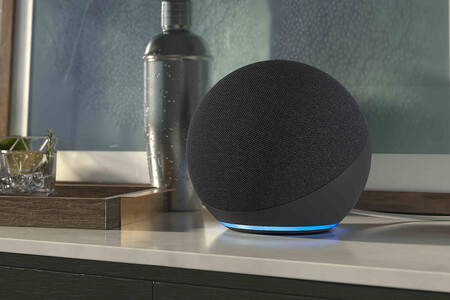
✨ Your Personal Assistant Awaits
Activating Alexa on your smartphone requires nothing more than a free app download and a few minutes of setup time. The rewards include hands-free convenience, smart home control from anywhere, instant access to information, and countless other capabilities that simplify daily tasks.
Whether you’re an existing Echo device owner looking to extend Alexa’s reach beyond your home or someone discovering voice assistants for the first time, the mobile app provides an excellent entry point. The learning curve is gentle, the features are practical, and the cost is zero beyond your existing phone and data plan.
Start with simple commands and gradually explore more advanced features as you become comfortable. Voice assistants work best when integrated into your existing routines rather than treated as novelties. Give Alexa a few weeks to learn your preferences and speech patterns, and you’ll likely find yourself wondering how you managed without a personal assistant in your pocket.
The technology exists today to make your life easier, more efficient, and better connected. All it takes is downloading an app and speaking your first command. Your smartphone is already smart—activating Alexa makes it brilliant.
